Image















Parents and/or students are occasionally required to fill out individual forms in Skyward Family Access. These forms are separate from the yearly Student Information Update Forms. The guidelines below will help you through the steps necessary for successfully completing these forms.
Use the tabs below to preview the steps, or download a printable version showing all steps.
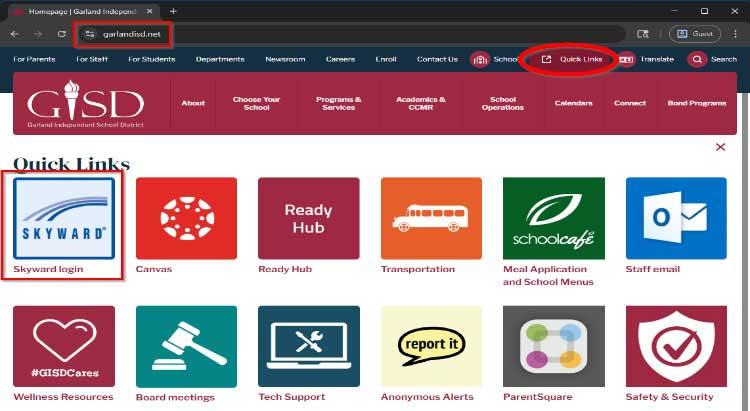
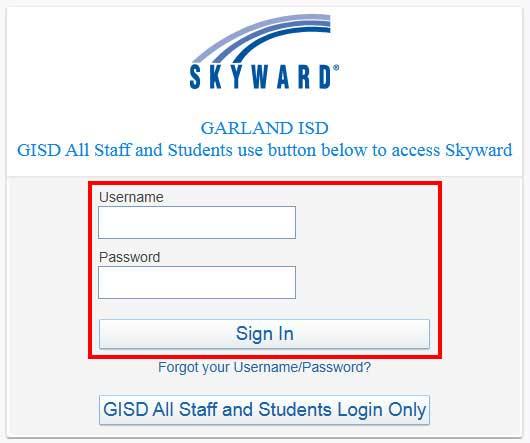
There are links to Skyward in many locations across the district and campus websites. One easy way to find it is from the Quick Links dropdown on this website.
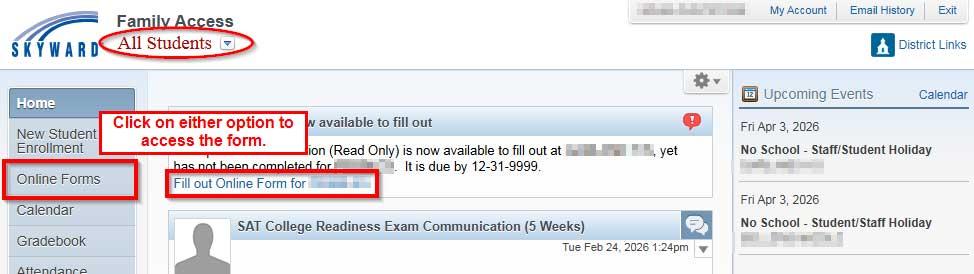
The Online Forms tab will be available if there are forms waiting to be completed.
You have the option to filter forms for a specific student in the drop-down titled “All Students.”
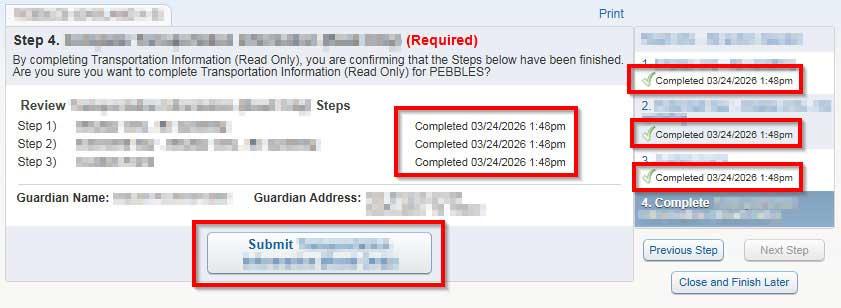
Each step should have a (checkmark) next to it.
On the last step, review that each step has a completed date and click on the Submit button in the middle for the form to be submitted to the district.